Mouse settings explained: DPI, report rate, and receiver modes
Modern gaming mice expose a few settings that are easy to misunderstand because the labels are short and the marketing around them is often imprecise. This post uses ZOWIE's current -DW wireless mice as the example: EC-DW, FK2-DW, ZA13-DW, S2-DW, and U2-DW. The exact shape differs by model, but the relevant controls and settings are the same.
The important distinction is simple: the bottom slider selects the active connection mode. It is not a recommendation for when to play, when to stop, or where to put the mouse after a session.
The receiver mode slider
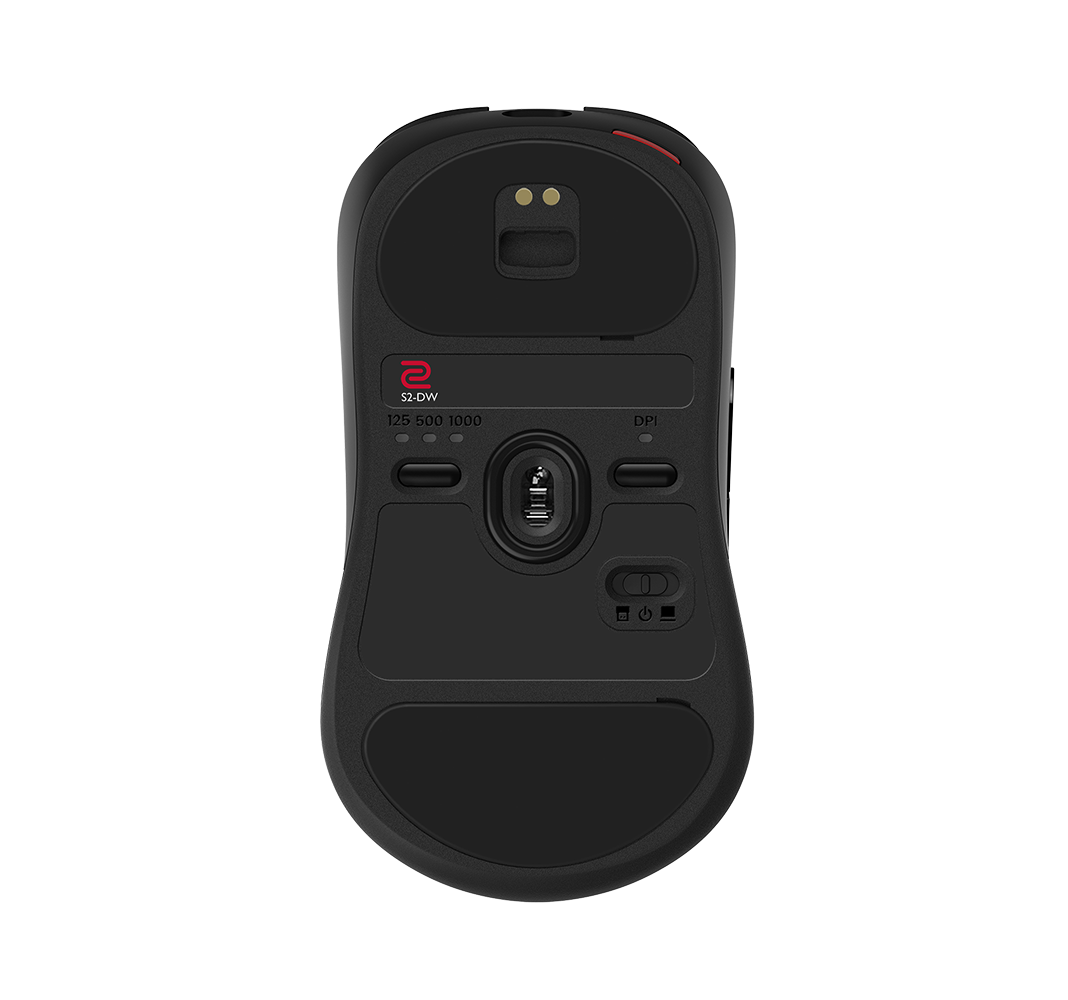
The three-position slider on the bottom is a power and receiver selector:
• Enhanced wireless receiver mode — use this when the enhanced receiver is the device plugged into the computer. This is the larger directional receiver that also works as a pogo-pin charging dock. • Off — use this when you want the mouse powered down, such as for travel or storage. • USB wireless receiver mode — use this when the small USB receiver/dongle is the device plugged into the computer.
Set the slider to match the receiver currently connected to the computer. If the enhanced receiver is connected, use enhanced receiver mode. If the USB dongle is connected, use USB receiver mode. If neither receiver is connected and you do not want the mouse awake, turn it off.
The enhanced receiver can charge the mouse through the pogo pins, but that does not make the slider a "dock mode" in the everyday sense. Charging is a feature of the enhanced receiver; the slider's job is to choose which wireless receiver the mouse should talk to.
The two bottom buttons
The two other controls are for DPI and report rate:
• DPI button — cycles through 400 , 800 , 1000 , 1200 , 1600 , and 3200 DPI. • Report-rate button — cycles through 125 , 500 , 1000 , 2000 , and 4000 Hz, depending on which receiver is in use.
ZOWIE's documentation notes that available report rates vary by receiver. In practical terms, the enhanced receiver is the one intended for the high report-rate modes. The small USB receiver is the simpler portable option and may not expose the same top-end settings.
What DPI actually changes
DPI means "dots per inch," although "counts per inch" is the more accurate technical description for a mouse sensor. It is the number of movement counts the mouse reports for each inch of physical movement.
At 400 DPI, moving the mouse one inch reports about 400 counts. At 1600 DPI, the same movement reports about 1600 counts. If every other sensitivity setting stays the same, the cursor or crosshair moves four times as far.
DPI is not a quality rating. A higher number does not automatically mean better tracking, better aim, or a more accurate sensor. It is mostly a sensitivity input. The setting only makes sense together with the rest of the chain: operating-system pointer speed, in-game sensitivity, raw-input behavior, screen resolution, and mousepad space.
For games, the useful concept is effective sensitivity. Players often call this eDPI : mouse DPI multiplied by in-game sensitivity. This is useful when comparing settings inside the same game, but it does not transfer perfectly across different games because their sensitivity scales are different.
A sensible starting point is 800 or 1600 DPI, then adjust in-game sensitivity until large movements and small corrections both feel controlled. For desktop use on a high-resolution display, a higher DPI can be convenient. For aim-heavy games, an extremely high total sensitivity usually makes small corrections harder, even if the sensor itself is working correctly.
What report rate changes
Report rate, often called polling rate, is how often the mouse sends position updates to the computer.
• 125 Hz = one report every 8 ms • 500 Hz = one report every 2 ms • 1000 Hz = one report every 1 ms • 2000 Hz = one report every 0.5 ms • 4000 Hz = one report every 0.25 ms
A higher report rate reduces the maximum time between a physical movement and the next mouse report. That can improve motion smoothness and reduce input latency, especially on high-refresh-rate displays where the system can present those updates more frequently.
The improvement is not linear in practice. Moving from 125 Hz to 1000 Hz is obvious. Moving from 1000 Hz to 4000 Hz is much smaller and depends on the rest of the system: monitor refresh rate, game engine, CPU load, USB behavior, and whether the game is already frame-time limited.
ZOWIE lists the S2-DW battery life as 80 hours at 1000 Hz, 30 hours at 2000 Hz, and 24 hours at 4000 Hz. Higher report rates also create more USB/input work for the system. On a fast machine this is usually fine; on a CPU-limited system or a poorly behaving game, dropping back to 1000 Hz can make sense.
Practical settings
For most people, this is the clean baseline:
• Use enhanced wireless receiver mode when the enhanced receiver is plugged into the computer. • Use USB wireless receiver mode when the small USB dongle is plugged into the computer. • Use Off when storing or transporting the mouse. • Start at 800 or 1600 DPI, then tune sensitivity in the operating system or game. • Start at 1000 Hz report rate; try 2000 or 4000 Hz if you are on a high- refresh display and the system remains stable.
• Dock the mouse to charge it as frequently as needed per the report rate settings
References
• ZOWIE S2-DW specifications: https://zowie.benq.com/en-us/mouse/s2-dw.html • ZOWIE DPI and polling-rate FAQ: https://zowie.benq.com/en- us/support/faq/product/application/zowiegear-faq-kn-00025.html • ZOWIE S2-DW quick start guide: https://zowie.benq.com/en-us/qsg/s2- dw/guide.html
Comments